TrueLink - Adjust's deep linking solution
TrueLink is Adjust’s deep linking and cross-platform routing solution. It helps you create seamless journeys across app, web, and mobile environments while preserving attribution, routing logic, and campaign context.
- Deep link users into specific in-app destinations
- Support deferred deep linking for new app installs
- Route users across app, web, and store experiences
- Support web-to-app and cross-platform journeys
- Manage links at scale across teams and channels
TrueLink tiers
TrueLink capabilities are available across multiple pricing tiers depending on your use case and scale requirements.
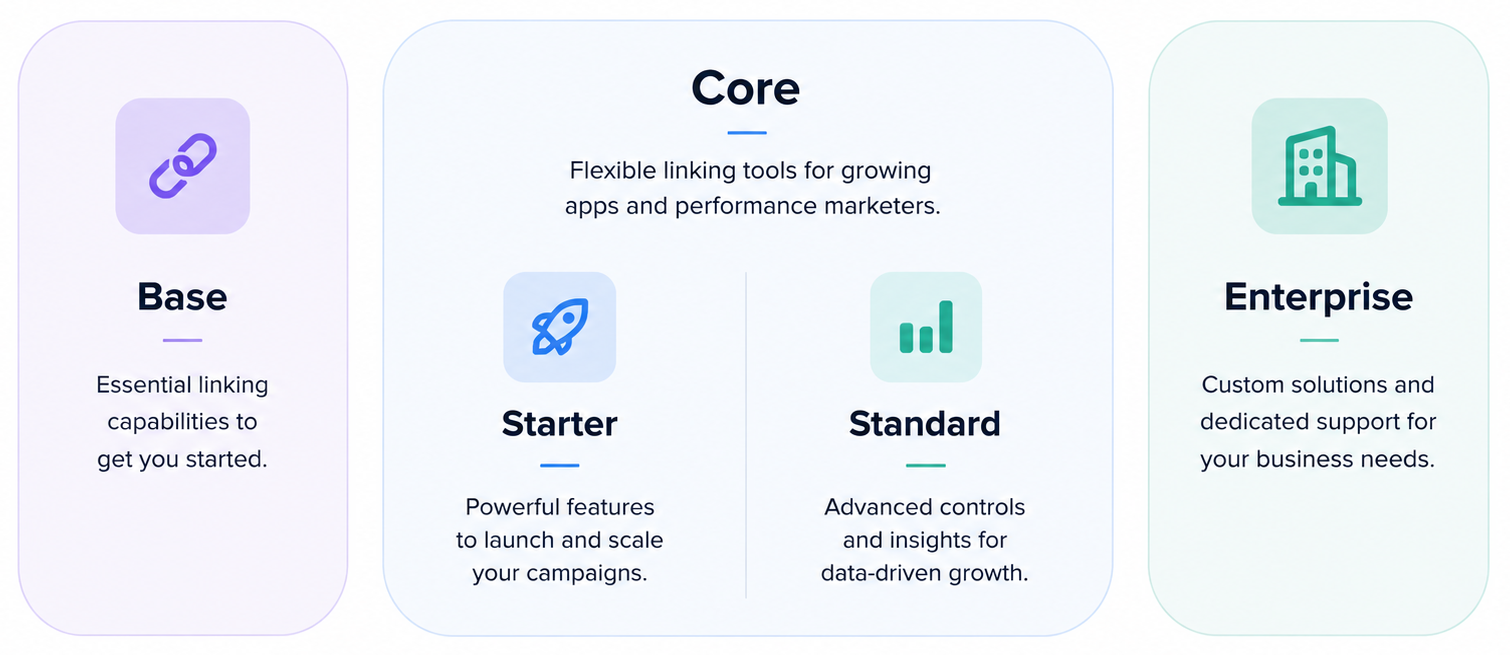
Core capabilities
Get started with TrueLink
You can start using TrueLink directly in Campaign Lab to create cross-platform deep links, deferred deep links, and branded short links.
Quickstart
To get started:
- Set up a branded domain (
yourbrand.go.link) for your app. - Configure platform support for your app:
- Create your first link in Campaign Lab.
- Test your routing and deep linking behavior.
iOS apps
- Update to Adjust iOS SDK v5. This is a recommended step to take full advantage of TrueLink's features.
- Set up the same branded domain for your iOS and Android app. Optionally, you can also set up the same Enterprise Domain if you wish to use TrueLink on your own first-party (sub) domain.
- If you previously used Adjust’s universal link domain (
xxx.adj.st), this will continue to work after you implement TrueLink. Any users that aren’t using the latest version of your app are redirected from the branded domain (brandedDomain.go.link) to the Adjust universal link domain to open your app. If the link doesn’t open your app as expected, the user is redirected to the app store.
- If you previously used Adjust’s universal link domain (
- Set up universal links in the Adjust SDK.
- Add your branded domain as an Associated Domain. If you are already using
xxx.adj.stas your universal link domain, do not remove it. Keeping bothxxx.adj.standbrandedDomain.go.linkas associated domains will simplify the transition for all users. - Enable universal linking in your app. You need to provide the App ID prefix and your app scheme.
- Work with your developer to determine the app screens for directing existing users or new users after they install the app.
- Add your branded domain as an Associated Domain. If you are already using
- Configure the Adjust iOS SDK to resolve your short links. This is required if you want to use short links.
- You don’t need to set up LinkMe or Link resolution to use short links.
- Create your links.
- Create short custom links in Campaign Lab.
- You can also use the Deep link Generator in Campaign Lab to create individual long deep links from network-level links for any platform and ad environment.
- If you have access to the Deep link generator API, you can use it to create branded short links individually or in bulk. You need to be on the TrueLink Core, or Enterprise package to get access to the Deep link generator API. Contact sales@adjust.com for more information.
- Test your links in the updated version of your app. If you face any issues, reach out to your Adjust representative or contact support@adjust.com.
Transitioning from iOS universal links
If your developer is working on implementing a new app build with the brandedDomain.go.link as an Associated domain for universal links, follow these steps:
Before you publish the updated app version to the store
Continue using the xxx.adj.st links for your campaigns. If you use the brandedDomain.go.link link for an older app build, it functions as an install link, but not as a universal link. This is because the old app version does not have the brandedDomain.go.link domain as an associated domain yet. If you have a way of force-updating app builds, we recommend doing that to shorten the transition period.
- If you want to create universal links after setting up the branded domain for your app, create long links using the branded domain, and then replace
go.linkwithadj.stas the domain. The rest of the parameters in the link will be the same and we recommend that you test the link to make sure it works.
After you publish the updated app version to the store
You can start creating and using branded short links (brandedDomain.go.link) in your campaigns. If users on a previous version of the app select the brandedDomain.go.link link, it redirects to the xxx.adj.st link. This opens the app in most cases, minimizing any disruption for your users.
Android apps
- Update to Adjust Android SDK v5. This is a recommended step to take full advantage of TrueLink's features.
- Set up the same branded domain for your iOS and Android app. Optionally, you can also set up the same Enterprise Domain if you wish to use TrueLink on your own first-party (sub) domain.
- Set up deep links in the Adjust SDK.
- Configure your branded domain as the Android App Link.
- Set up Android App Links for your app. You need to provide at least one SHA-256 certificate fingerprint and your app scheme.
- Work with your developer to determine the app screens for directing existing users or new users after they install the app.
- Configure the Adjust Android SDK to resolve your short links. This is required if you want to use short links.
- You don’t need to set up Link resolution to use short links.
- Create your links.
- Create short custom links in Campaign Lab.
- You can also use the Deep link Generator in Campaign Lab to create individual long deep links from network-level links for any platform and ad environment.
- If you have access to the Deep link generator API, you can use it to create branded short links individually or in bulk. You need to be on the TrueLink Core, or Enterprise package to get access to the Deep link generator API. Contact sales@adjust.com for more information.
- Test your links in the updated version of your app. If you face any issues, reach out to your Adjust representative or contact support@adjust.com.
Transitioning from Adjust deep links
- Continue using the
app.adjust.comoradj.stlinks for your campaigns. You cannot create new deep links until you set up Android App Links. - Work with your developer to generate an updated app build with the branded domain (
brandedDomain.go.link) as the Android App Link. You can now create and use new deep links in your campaigns.
If users on a previous version of the app select the brandedDomain.go.link link, it redirects to the app.adjust.com or adj.st link. This opens the app in most cases, minimizing any disruption for your users.
Cross-platform framework support
If your app uses a cross-platform framework, see the Developer Hub setup guides:
Unity | React Native | Flutter | Cordova | Cocos2d-x