Set up conversion rules
Conversion Rules are an advanced feature under the Protect pillar. They allow you to validate installs and user engagements by applying custom rules that you define.
To enable Conversion Rules for your account, please contact sales@adjust.com.
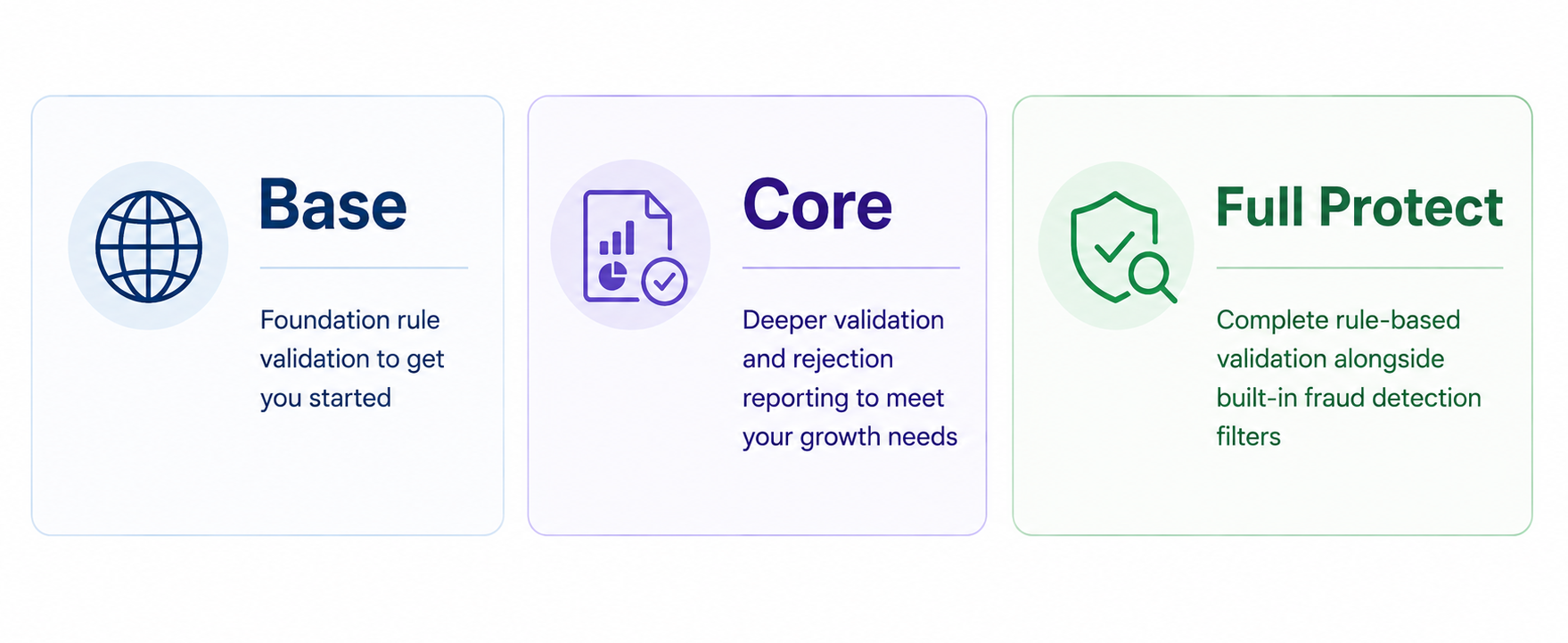
Conversion Rules tiers
Conversion Rules are available across different tiers, each offering a different level of validation and reporting depth to suit your needs.
Before you begin
Here's what you need to know before getting started.
Requirements
- Users with Admin, Editor, or Custom Editor permissions in Adjust.
- A single or multi-platform app in Adjust.
Set up a conversion rule
To set up a conversion rule, follow these steps.
- Under Protection, select Conversion rules.
- Select New conversion rule.
- Enter a name for your rule.
- Choose one of the following status:
- Live - Rule is applied to attributions immediately when conditions are met.
- Test - Use this to test your conversion rule. For conversion rules in Test status, we don't change the attribution source.
- Pause - Your rule is not applied to any attributions.
- Select the rule type. This determines which conditions and settings are available:
- For Store, Region, Version, and Parameter rules, choose the attribution fallback behaviour — Unverified devices or Untrusted devices — and, if available for your rule type, whether to extend rule validation to post-install activities. Region and campaigns match / Version and campaigns match rules use Skip attribution instead, so this step doesn't apply to them.
- Under Apply rule to, select your app and, depending on the rule type, the channels, target filters, or campaign segment (channel/campaign/adgroup) the rule is scoped to.
- Under Rule definition, set up your conditions (If this happens) and choose Accept or Decline (Then do this) to determine which side of the condition gets the fallback treatment.
- Select Create rule.
Once your rule is Live, Adjust checks attribution data against the rule configuration. This might change your attribution results. You will see these changes in your raw data exports and Datascape.
For any rules in Test status, we don't change the attribution source. Rejected and unverified results are flagged and visible in Datascape reports and raw data (callbacks and CSV exports). Unlike in live mode, rejected results are not shared with partners, even if partner sharing is configured for rejections. To distinguish test vs. live results, add the {conversion_rule_status} placeholder (test / live) to your setup.
Attribution behaviours
Accept and Decline
Each rule's conditions are evaluated as If this happens (the condition) → Then do this (the action). The action determines which side of the condition is subject to the rule's attribution behaviour:
- Accept — Whatever meets these conditions continues in the normal attribution flow. Whatever does not is subject to the selected attribution behaviour.
- Decline — Whatever meets these conditions is subject to the selected attribution behaviour. Whatever does not continues in the normal attribution flow.
What "subject to the attribution behaviour" means depends on the rule type:
- For Store, Region, Version, and Parameter rules, it means the install is attributed to Unverified devices or Untrusted devices — you choose which.
- For Region and campaigns match and Version and campaigns match rules, it means the source is skipped for that install. This isn't a separate choice — it's simply what these rule types do.
Store rule types currently support Accept only. All other rule types listed above support both Accept and Decline.
Unverified devices
- Installs from unverified devices are unverified.
- Adjust retains postbacks and aggregated data.
- Raw data is shared as
unverified_installactivity for unverified devices. - Sources receive standard
installcallbacks without any change to the install attribution. - Cohort reporting is available up to campaign level.
- Raw data is shared as
- Unverified devices can be reattributed.
Untrusted devices
- This represents the highest severity level.
- Installs from untrusted devices are rejected.
- Install postbacks are sent, but the install is marked as not attributed.
- Sources may receive
rejected_installcallbacks, which can include fields such asclick_idand the rejection reason. This data is provided for diagnostic and fraud-analysis purposes. - Cohort reporting is limited to high-level totals only. There is no breakdown by channel, campaign, or other granular dimensions.
- Untrusted devices cannot be reattributed.
To use this attribution behaviour in either live or test mode, your account must have the Conversion Rules Core feature enabled.
Please contact sales@adjust.com for assistance.
Skip attribution
The attribution behaviour for Region and campaigns match and Version and campaigns match rules. Unlike Unverified devices and Untrusted devices, this isn't a choice you make — it's the behaviour these rule types always use.
- The source tied to the skipped side of the condition (see Accept and Decline) is removed from consideration for that install.
- Adjust then searches for the preceding best eligible engagement. If one is found, attribution is awarded to that source instead.
- If no eligible engagement is found, the install is attributed to Organic.
Extend rule validation to post-install activities
Available for Region, Version, and Parameter rules.
Post-install activities are not reattributed. They are bucketed as rejected for the same source the install is attributed to.
Enables rule enforcement on all post-install activities (sessions, events, and ad revenue) across the app. This includes activity from existing users and previously attributed installs.
When this toggle is on, the Accept/Decline description extends to cover post-install activities too:
- Accept + toggle on: Installs that meet these conditions will continue in the attribution flow. Those that do not will be attributed to the selected attribution behaviour. Post-install activities that do not meet these conditions are bucketed as rejected.
- Decline + toggle on: Installs that meet these conditions will be attributed to the selected attribution behaviour. Those that do not will continue in the attribution flow. Post-install activities that meet these conditions are bucketed as rejected.
- If the install was attributed to a valid source (that is, not classified as an Untrusted device):
- Raw data is shared as
rejected_session,rejected_event, orrejected_ad_revenueactivity. - Rejected activities are exposed in reporting under the Rejected sessions, Rejected events, or Rejected ad revenue buckets.
- Raw data is shared as
For rules in Test status, rejected activities are flagged and visible in Datascape reports and raw data (callbacks and CSV exports). To distinguish test vs. live results, add the {conversion_rule_status} placeholder (test / live) to your setup.
To use this option in either live or test mode, your account must have the Conversion Rules Core feature enabled.
Please contact sales@adjust.com for assistance.
Apply rule to
Every rule type includes an Apply rule to section where you scope which traffic the rule affects:
- App — the app the rule applies to. This can't be changed after the rule is created.
- Channels — limit the rule to specific channels, or leave as All to apply the rule across every channel.
- Target filters (Version rule type only, optional) — one or more conditions, combined with AND, that scope which traffic the rule's conditions apply to.
Target filters only limit which installs the rule applies to — they don't participate in the rule's Accept/Decline outcome. An install that doesn't match a target filter is outside the rule's scope entirely: it's neither accepted nor declined by this rule.
For Region and campaigns match and Version and campaigns match rules, Apply rule to shows App, Channel, Campaign, and Adgroup instead, since these rule types scope to a specific campaign segment rather than channels alone.
Rule types
Store
The 'Store' type rule lets you restrict attribution based on which store an install was detected and verified against. It supports every store Adjust detects, across all platforms — Android, iOS, PC, and others as they're configured for your app — not only Google Play and the Apple App Store.
Store rule only sees pass, fail, or skip for each store's verification methods — a skipped result counts the same as passed. If a store's verification method isn't turned on, every install for that store is skipped rather than checked, and the rule will pass installs it should be catching. If the method is turned on but a specific install's SDK integration is too old to send the required signal, that install fails the check instead — the opposite risk, where the rule may reject installs it should be accepting. For example: if you haven't turned on LVL for Google Play, an unrelated install with no LVL signal is simply skipped. But if you've turned on the Adjust SDK Signal check for the Apple App Store and an install comes from an app still on an older version, that install fails the check and gets rejected, even though nothing is actually wrong with it. Confirm your integration and verification settings for each store before relying on this rule. See Store detection and verification for how detection and verification signals work, and Configuring store detection and verification for where to check or change your settings.
If you want to set up the store rule, follow these steps:
- Choose your attribution fallback behaviour — Unverified devices or Untrusted devices.
- Under Apply rule to, select your app and, optionally, limit the rule to specific channels.
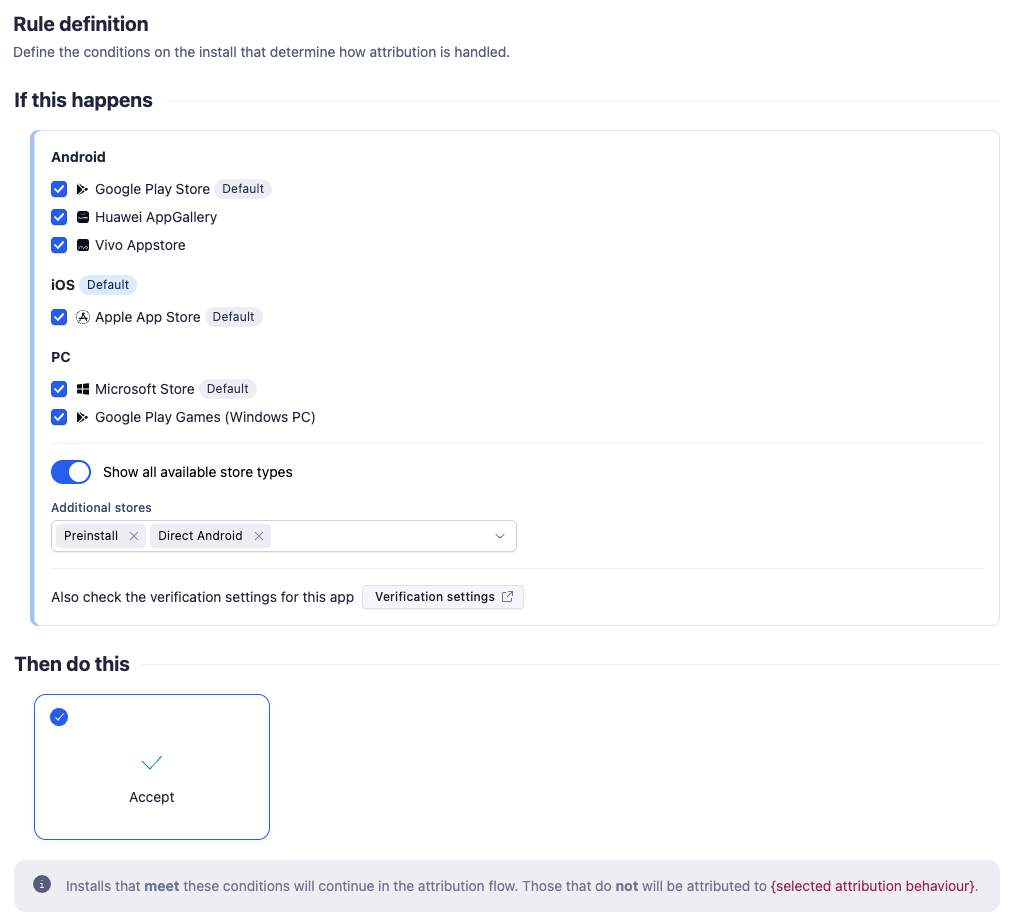
- Under Rule definition, choose the allowed store(s) under If this happens. Stores are grouped by platform, with your configured default store marked for each. Turn on Show all available store types to choose from every store type Adjust supports, including ones not yet configured for your app.
- Select Also check the verification settings for this app to jump directly to your store's verification configuration, if you want to review or adjust it before creating the rule.
- Select Create rule.
With this rule, an install only passes if its detected store type is one of your allowed stores, and every verification method enabled for that store returns a passed or skipped result. If any enabled verification method fails, the install is attributed to Unverified devices or Untrusted devices regardless of whether the store itself matched.
Store rule types currently support Accept only — see Accept and Decline.
Region
The 'Region' type rule allows devices and installs from specific regions.
If you want to set up the region rule, follow these steps:
Choose your attribution fallback behaviour — Unverified devices or Untrusted devices. This rule also supports Extend rule validation to post-install activities.
Under Apply rule to, select your app and, optionally, limit the rule to specific channels.
Under Rule definition, choose multiple regions by setting conditions for Country:
- Condition type - Set to Equal to or Not equal to.
- Value - Choose a value from the list.
Choose Accept or Decline under Then do this.
Select Create rule.
Example: A 'Region' rule with
- Condition Type: Equal to
- Country Value: Japan
- Then do this: Accept
- Extend rule validation to post-install activities: Enabled

Interpretation: As a marketer, I want to accept only activities originating from the Japan region.
Behaviour:
Installs originating outside Japan are treated as Unverified, and any post-install activities that do not meet the rule conditions are rejected.
Version
The Version rule allows you to define conditions based on version-specific fields such as:
- App version
- SDK version
- Signature version
- OS version
You can use this rule to restrict attribution to devices running specific versions. Depending on whether the rule is set to Accept or Decline, installs that don't meet the conditions (or that do, for Decline) are attributed to your selected Unverified or Untrusted fallback.
If you want to set up the version rule, follow these steps:
Choose your attribution fallback behaviour — Unverified devices or Untrusted devices. This rule also supports Extend rule validation to post-install activities.
Under Apply rule to, select your app, optionally limit the rule to specific channels, and optionally add one or more Target filters to scope which traffic the rule's conditions apply to.
For example, to apply this rule only to Android devices in a multi-platform app, add the following target filter:
- Condition: OS name
- Condition type: Equal to
- Value: Android
Under Rule definition, add one or more version-based conditions under If this happens. Conditions within a group are combined using AND logic. Use separate groups to apply OR logic.
Choose Accept or Decline under Then do this.
Select Create rule.
Example:
As a marketer, I need to define a rule that follows the security team's requirements for my multi-platform app.
The requirement is to only allow installs (the rule should not apply to post-install activities) on Android if:
- App version is 2.2.1 or higher and device OS version is 6.0.0 or higher, or
- App version is 2.9.1 or higher and device OS version is 7.1.2 or higher
Attribution fallback behaviour: Untrusted devices
Then do this: Accept
Extend rule validation to post-install activities: Disabled
Target filters: [OS name] [Equal to] [Android]
Rule definition:
Group 1 [App version] [Greater than or equal to] [2.2.1] [OS version] [Greater than or equal to] [6.0.0]
Group 2 [App version] [Greater than or equal to] [2.9.1] [OS version] [Greater than or equal to] [7.1.2]

Case 1: Install OS name is iOS
- Result: rule is skipped — the target filter doesn't match, so the rule doesn't apply at all.
If the rule had not included the OS name target filter, the attribution of the install would have been rejected because no conditions matched.
Case 2: Install OS name is Android, App version is 2.3, OS version is 6.1
- Result: Condition matched (Group 1). Accepted — no rejection.
Case 3: Install OS name is Android, App version is 2.1, OS version is 6.1
- Result: Condition didn't match either group. Attribution rejected per the fallback behaviour.
Be careful when using operators that narrow the condition too strictly, such as:
App version = 1.2.1
If your app releases a new version (e.g., 1.2.2), the rule will no longer match, and new installs may be rejected or unverified.
✅ A safer alternative is to use a range or lower bound, such as:
App version ≥ 1.2.1
Always ensure your conditions are forward-compatible with future app versions, unless you are intentionally targeting a specific build.
If you do want to target a very specific build, consider moving that condition to Target filters.
This helps improve rule readability and long-term maintainability.
Parameter
The 'Parameter' type rule checks the activity's SDK parameters against one or more conditions — for example, requiring a key to exist, or its value to match, contain, or exclude specific values.
If you want to set up the parameter rule, follow these steps:
- Choose your attribution fallback behaviour — Unverified devices or Untrusted devices. This rule also supports Extend rule validation to post-install activities.
- Under Apply rule to, select your app and, optionally, limit the rule to specific channels.
- Under Rule definition, add one or more parameter conditions under If this happens:
- Choose a Condition type — Exists, Equal to, Not equal to, Contains, or Does not contain.
- Enter the Parameter key to check. For Exists, you can provide multiple parameter keys; all must be present for the activity to pass the check.
- For all condition types except Exists, provide one or more Parameter values to match against.
- Select + AND to add further conditions. Each condition is evaluated independently, and all must pass for the activity to pass the check.
- Choose Accept or Decline under Then do this.
- Select Create rule.
Parameter keys are matched case-sensitively; parameter values are matched case-insensitively.
There's no dedicated condition for checking that a parameter value is empty — Adjust can't reliably distinguish "value is empty" from "value is missing." Use Exists to check that a parameter is present in the payload, as in the device_id condition above.
If you want to create required parameter rules for each instance of an event, you can use the Required Parameters condition of the Event Rule together with Flow Check.
Example: A 'Parameter' rule with
- Condition type: Equal to, Parameter key:
environment, Parameter value:production - Condition type: Exists, Parameter key:
device_id
- Then do this: Accept

Interpretation: As a marketer, I want to accept only activities from production builds that include a device identifier.
Behaviour: Installs that don't meet these conditions are treated as Untrusted, and any post-install activities that don't meet these conditions are rejected.
Region and Campaigns match
The 'Region and campaigns match' type rule allows devices and installs from your chosen region and campaigns.
If you want to set up the region and campaigns match rule, follow these steps:
- Under Apply rule to, select the App, Channel, Campaign, and Adgroup to choose the campaign segment.
- Under Rule definition, choose multiple regions by setting conditions for Country:
- Condition type - Set to Equal to or Not equal to.
- Value - Choose a value from the list.
- Choose Accept or Decline under Then do this.
- Select Create rule.
Example: For a 'Region & Campaigns Match' rule with
- Campaign 'Channel' value: Moloco
- Country Value: USA
- Then do this: Accept

Interpretation: For the Moloco campaign, I want to attribute installs coming from the USA.
Behaviour: If there is an install from outside the USA, it will not be attributed to any Moloco campaign even if the last engagement (that won the attribution) came from Moloco. See Skip attribution for how Adjust handles the fallback search.
Version and Campaigns match
The Version and campaigns match rule allows attribution only for installs that match both a specific app version and campaign.
You can use this rule to ensure that only installs from specific app versions are attributed to designated networks. For example:
- Network A should only receive attribution if the app version is 3.0.5.
- Network B should only receive attribution if the app version is 3.0.6 or 3.0.7.
- Network WW should only receive attribution if the app version contains the "_ww" suffix (e.g.,
3.0.8_ww).
To set up a Version and Campaigns match rule:
- Under Apply rule to, select the App, Channel, Campaign, and Adgroup for the campaign you want to match. If using a multi-platform app, also select the platforms the rule should apply to.
- Under Rule definition, choose a Condition type and a Value:
- Condition type must be one of the string or semantic versioning condition types.
- For the value, enter one or more values depending on the selected type.
- Adjust compares the value with:
app_version_shorton iOSapp_versionon all other platforms
- Choose Accept or Decline under Then do this.
- Select Create rule.
Example
For a Version & Campaigns Match rule:
- Campaign Channel value: WW
- App Version condition: [Contains]
_ww

Interpretation:
For the WW channel, I want to attribute only installs that have app versions ending with _ww.
Behaviour:
If an install has an app version that does not contain _ww, it will not be attributed to any WW campaign — even if the last engagement came from WW. See Skip attribution for how Adjust handles the fallback search.
Manage your conversion rule
On the Conversion rules page, you can:
- View a list of your conversion rules.
- View the status of the rule and change its status.
- Select
 (edit icon) to edit the rule. You can change the rule name, status, type, and its settings.
- You cannot change the app for which you created the rule.
- Select
 (delete icon) to delete the rule.
 (edit icon) to edit the rule. You can change the rule name, status, type, and its settings.
 (delete icon) to delete the rule.
Reporting
Here you can find details about how Adjust reports conversion rules data in Datascape. This uses the following structure in reports.
Attribution changed to Unverified devices
| Campaign structure level | Reporting value |
|---|---|
| Channel |
|
| Campaign | Rule type
|
| Adgroup |
|
| Creative |
|

Attribution changed to Untrusted devices
| Campaign structure level | Reporting value |
|---|---|
| Channel |
|
| Campaign | Rule type
|
| Adgroup |
|
| Creative |
|

Dimensions
- Unverified devices
- Untrusted devices
Metrics
Unverified, Untrusted devices attribution behaviours
- Installs
- Unverified Installs Store Rule
- Unverified Installs Region Rule
- Unverified Installs Version Rule
- Unverified Installs Parameter Rule
- Rejected Installs Store Rule
- Rejected Installs Region Rule
- Rejected Installs Version Rule
- Rejected Installs Parameter Rule
- Reattributions
- Unverified Reattributions Store Rule
- Unverified Reattributions Region Rule
- Unverified Reattributions Version Rule
- Unverified Reattributions Parameter Rule
- Rejected Reattributions Store Rule
- Rejected Reattributions Region Rule
- Rejected Reattributions Version Rule
- Rejected Reattributions Parameter Rule

Rejected post install activities
- Rejected sessions region rule
- Rejected events region rule
- Rejected ad revenue region rule
- Rejected sessions version rule
- Rejected events version rule
- Rejected ad revenue version rule
- Rejected sessions parameter rule
- Rejected events parameter rule
- Rejected ad revenue parameter rule

Skip attribution — metrics
- Unverified engagements region campaign rule
- Unverified clicks region campaign rule
- Unverified impressions region campaign rule
- Unverified engagements version campaign rule
- Unverified clicks version campaign rule
- Unverified impressions version campaign rule
